Dissertation Progress

Page Count
71/300 pp

* Note: the gray bar represents pages I’ve written; the blue bar represents pages approved by my committee.

Christians and Debt: “Owe no man any thing”

The phrase “owe no man any thing” (Rom 13.8) is commonly misquoted as a prohibition on incurring financial debt. This verse is often twisted to mean, “Don’t put that TV on your credit card,” “Only buy used cars,” and “Don’t borrow money from your relatives.” (Strangely, those who misuse it in this fashion almost never take it to mean, “Don’t sign a mortgage to buy a house…”)

Paul says something in the preceding verses that make it impossible to read this verse as a blanket prohibition on “financial debt.” In verse 7, Paul told the Roman believers to “pay to all what is owed to them: taxes to whom taxes are owed, revenue to whom revenue is owed, respect to whom respect is owed, honor to whom honor is owed.” In other words, “pay all your financial obligations.” He uses the words “revenue” and “owed” back-to-back with no qualification. He doesn’t say, “If you happen to be under a financial obligation because you’re a sinner who doesn’t heed the words of Dave Ramsey*, pay what you owe.” He assumes that the readers have financial obligations and tells them to pay those assumed debts.

I suppose someone might argue that Paul is just talking about taxes, not car loans and credit cards. To that objection, I’d raise the following questions.

  1. Why did he say “taxes” and “revenue?” Wouldn’t “taxes” have sufficed if he was only talking about them?
  2. There were no car loans back then; of course Paul didn’t identify them.
  3. By stacking the words “taxes,” “revenue,” “respect,” and “honor,” Paul broadens this instruction far beyond car loans and credit cards.

Paul’s point is this: no matter what you owe someone, pay it. From taxes to financial debts to intangible forms of honor for authorities, pay what you are obligated to pay. That means if you sign a car loan or mortgage, pay each payment on time. If you owe recurring forms of financial obligation, like rent, school payments, cell phone bills, or taxes, make each payment on time. He assumes that his readers will have financial obligations; the instruction is to pay them properly, not to judge people whose obligation is different from or heavier than yours.

Of course, don’t take on debt for foolish reasons or in a foolish way. There’s a lot of wisdom about that in Solomon. But also, don’t take Paul’s words to mean something different from what he wrote them to mean.

As long as we’re on the topic of misquoted verses, I’d like to point out that “give honor to whom honor is due” is not really a verse about graduation honors. In its original context, it referred to respect shown to a civil authority, not to a student with a 4.0. I’m not saying it’s heresy to quote that verse during commencement; I’m just pointing out that it means something different.

* No disrespect meant to Dave Ramsey at all – my wife and I appreciate and follow much of his advice.** I’m just poking at those who misunderstand this verse and treat his books as inspired gospel-truth to corroborate that misinterpretation.

** Yes, that’s an affiliate link. I earn a little if you use it to buy this book; you don’t pay any extra, though. Win-win!

30/30 Timer – My New Favorite iPhone Productivity App

30/30 Timer AppWhen I started my dissertation, I knew that it would be hard to keep myself productive and motivated on a year-long, self-planned schedule. What I didn’t realize until recently was that the key to keeping myself on that schedule was not to plan monthly deadlines, but to manage my hourly productivity each time I sat down to work. I’d sit down for an afternoon of research or writing, hit a block (obstacles are everywhere in a dissertation!), and spend 2-3 hours chasing bad leads, looking for distraction, or just staring and waiting for inspiration. Apparently, even a 4 hour block of time is too long for me to be left unsupervised! Enter 30/30.

30/30 Afternoon Study Schedule30/30 lets you create a list of tasks, sort them, assign them durations, and get notifications when it’s time to switch. It’s loosely based on the Pomodoro Technique, but it allows you to set any duration for any task.

My afternoon study list loops through 1 hour read-write blocks and 15 minute breaks. I can pause it at any time. (This week, I’ve found myself pausing at the end of a writing block so that I can get another paragraph or two done while I’m on a roll.)

30/30 helps me work by telling me what to do at this exact moment; it helps me avoid the seemingly endless Feedly breaks and focus on productivity, yet without letting the afternoon look like a long, boring block of time.

Get 30/30 for free in the App Store:

Chapter 2 Done

Chapter 2 was a veritable beast to write. I’m glad to be finished with it. It’s been sent off to my volunteer readers and I’ll be editing and submitting it on Friday. Assuming that it is approved by my committee, that will bring my total page count to 68.

I’ve also posted revisions to my deadline calendar. Originally, I left the summer entirely open, hoping to work ahead, catch up, or take some time off. Even though my committee won’t be obligated to return each chapter on a specific schedule, I’ll plan to complete a few more chapters during the summer and have a queue ready for the fall.

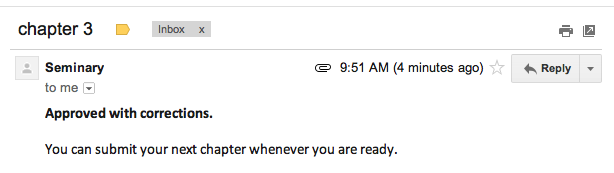
Chapter 1 Approved

Both my initial committee members have approved Chapter 1! Hopefully I can finish Chapter 2 within the next week or so.

My New RSS Reader to Replace Google Reader: Feedly

So as you probably heard, Google has announced that they’ll shut down Google Reader on July 1, 2013. Even though that’s more than three months warning, that announcement sent many loyal users into a panic and overloaded several other RSS sites by trying to move all their feeds immediately to a new RSS reader to replace Google Reader. (Full disclosure: I may have participated in that stampede.)

Google Reader was awesome.

I’ve been using Google Reader for – honestly, I don’t even know. My Trends page says I’ve read 95,000 items since July 2008, but I feel like I’ve been using it for longer. At any rate, I have almost 200 feeds, get about 400 new items a day, and read about 75 of those items. (More disclosure: about 20 of those are humor posts or comics; another 25 get sent to Pocket for reading later or archived in Evernote; another 10 I probably only skim, but Google Reader marks them as “read.”) I probably read about 10-15 actual articles per day on various topics from theology to web development to sports. All that boils down to this: I used Google Reader heavily; if it disappeared, that would be rough.

My Google Reader Usage

Now I’m not here to complain about Google’s decision. (1) They owned it. (2) It was a free service. (3) There are other options. (4) Even if I had no RSS reader at all, life would continue with no qualitative decline. That said, I’m pretty excited about my new RSS Reader: Feedly. Here’s why:

Feedly is even awesomer.

  1. Feedly imports your Google Reader feeds automatically. Just sign into Feedly with your Google account and bazinga – it imports all your feeds and categories.
  2. Feedly is promising to create an API that mimics Google Reader. This is great news for anyone who has a favorite 3rd party app that accessed Google Reader feeds. If your app’s developer wants to maintain that app, they can use Feedly’s new API.
  3. Feedly Feed ViewFeedly’s iOS apps are easy to use. It’s a different way to read feeds than I was used to. I had been using Feeddler Pro; that app provided detailed functionality, was slightly clunky in use, and made no attempt at aesthetics. Feedly’s apps are quick, well-designed, and must faster to use! I never used the Feeddler iPhone app because navigation between categories was very cumbersome; with Feedly, you just keep scrolling! They put some thoughtful planning into the gesture design for their apps.
  4. Feedly MenuFeedly looks great, IMO. It’s more colorful than Google Reader, but it keeps the same flat, clean design aesthetic.
  5. Feedly has exactly the sharing options that I need. I can open links in Chrome instead of Safari, save to Pocket, Tweet, and more.
  6. Its icon isn’t blue.

Get Feedly.

If you’re looking for a good RSS reader to replace Google Reader, you can sign up for Feedly for free and get the awesome Feedly iOS app.

Chapter 1 Submitted

What a relief! I just submitted Chapter 1: “The Official Development of the Imperial Cult in Rome.” It ended up being almost 7500 words (10% of the minimum requirement).

Now I only have to do that 9 more times…

Flexibility and Deadlines

You know that feeling of starting a new project, having no idea how much time it’s going to take, but still needing to set some deadlines? Starting a dissertation fits that description precisely.

Flexibility and Deadlines

I started with a schedule based on an estimate 3-4 weeks of work per chapter, I left the summer entirely open (my committee members aren’t obligated to return graded chapters in their normal turn-around time since it’s summer break for them), and I aimed to finish by Jan. 15, 2014. That’s all well and good, but…

It turns out, I didn’t finish chapter 1 in 3-4 weeks. I’m in my 5th week and not positive that I’ll finish this Friday. I’m not discouraged, however. A friend of mine who just finished his first draft last month told me that his first chapter took eight months to write. It’s not unusual for the first chapter to be more time-consuming. I’m certainly hoping that subsequent chapters move more quickly once more of the introductory research work is done.

I’m flexible to make adjustments as I go. I’m not just adjusting due dates on a calendar; I’m also learning and adapting my work habits and schedule. I realize the importance of my dedicated study environment. I know now to request as many library loan books as soon as possible so I don’t get slowed down waiting for them. I can let writing time overflow into evenings and weekends if I need to. I can make up for lost time by writing this summer (I might not get immediate feedback but I can certainly have chapters ready when the school year begins).

Here’s my revised calendar; here’s my progress meter. Thanks for checking them out and helping me keep going!

Fighting for Progress: Quick Wins

After spending two days on a single book (a very detailed, very relevant single book!), I decided to aim for momentum today. I’ve got another two volumes of two-day reading (and two or three more in the library loan shipping system), but before getting back into the “good stuff,” I knocked out several shorter, less pertinent sources this morning.

It feels good to get through five books in one day.

Five books finished today

My Dissertation Workflow & Tools

I’ve just started dissertating (barely 6% of the way through…) but I’ve already been asked a few times about my dissertation workflow and tools. I spent a while planning this before starting. Honestly, I was terrified of the thought of getting 35% finished and realizing that my workflow was slowing me down or that I needed to change tools. Here are the tools I’m using to write my dissertation:

  • MS Word (for Mac, 2008)
  • Zotero
  • Evernote
  • Toggl

MS Word (for Mac, 2008)

Microsoft Word Toobox

I know that Microsoft made Office a lot faster in the 2011 update, but they also took away the Toolbox. Since the Toolbox gives me the fastest access to styles & formatting (the key to a consistent dissertation layout!) that I’ve seen in any version of Word, I chose not to update yet.

I’m aware that Word is not really a 300 page document application and will probably present some formatting problems down the road (pagination, TOC, embedded images & charts), but I’ve set up my own Turabian-compliant styles instead of relying on someone else’s template, so I expect to troubleshoot those concerns precisely.

Once upon a time, I decided I would learn InDesign or LaTex, two programs that are much better for long document work, but I never did. So I’m using Word. Also, Word lets me access bibliography information in Zotero.

Zotero

ZoteroZotero is the best free way to manage a bibliography. It started as a Firefox extension. Mac users now get a standalone app with a Chrome plugin as well. Zotero automatically identifies bibliography information on any web page: library listing, Amazon, JSTOR, etc. It adds an icon to your url bar that matches the resource type (book, article) and clicking that icon saves all the data available to a new item in the Zotero app.

Zotero Extension for WordYou can then fine-tune that bibliography data in the app (not all listings capitalize titles or format dates the same way), as well as add notes to the source. Best of all, it has an MS Word extension that allows you to insert footnotes, bibliography pages, and references from any resource you’ve saved to Zotero. All the data from Zotero is linked back to the database, so if you correct an error in a resource, you don’t have to search your entire dissertation for any reference to that resource; just refresh it.

I mentioned that it does notes as well. I chose not to use Zotero for notes, because Evernote has an awesome feature that Zotero doesn’t.

Evernote

Evernote Note View

Evernote is a note management software. I’ve long used it for classes, work, code snippets, project ideas, and recipes, so adding my dissertation wasn’t a huge deal. It has apps for just about any device you use, so it keeps my notes synced between all my computers, iPhone, iPad, and anywhere I use a browser.

Evernote Folder View

The feature that sets Evernote a mile above Zotero is its OCR feature. I can type quotations from sources into either Evernote or Zotero, but only Evernote lets me snap a picture of a page on my iPhone, then search the text in that image later.

To organize all my notes, I’ve got a main folder called Dissertation. Then I create a sub-folder for each source. I put picture and typed notes into their proper folder. If I had very distinct chapter topics, I could also sort the resource folders into topic/chapter folders, but my chapters have more overlap. I’m going to use tags to organize individual notes. This will let me quickly find all my notes that refer to a single tagged topic instantly, no matter what book or article they’re in.

Evernote is free to start. They offer a Premium version with some great features: 100mb uploads, increased monthly data limit from 60mb to 1gb, ability to search PDFs. I burned up my free 60mb in 2-3 days, so Evernote Premium is definitely worth it for me. You can get Premium for $5/mo or $45/yr.

Toggl

Toggl TimerThere’s nothing academic about Toggl, but I am tracking time spend on my dissertation. I use Toggl for work as well – it’s a simple, free web app with desktop / mobile apps available.

At the end of this process, I’ll be able to look back and see exactly how many hours I’ve invested in it. I don’t know if that will impress or depress me, but time-tracking does help me keep moving. Knowing I’m “clocked in” goes a long way in the battle against procrastination and distraction.